

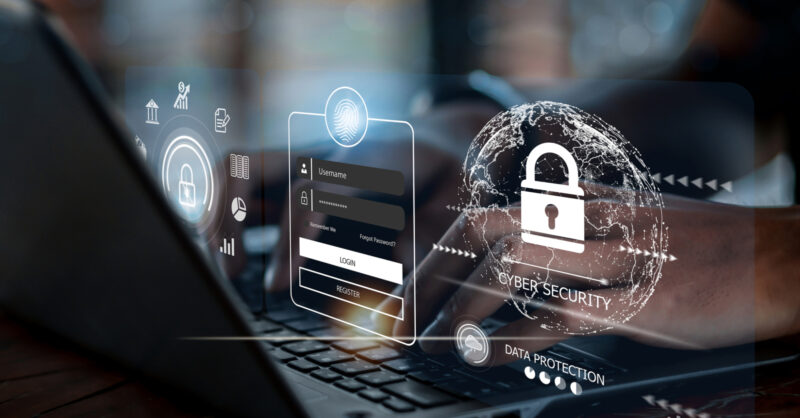
The internet is a marvel of modern life—connecting people, enabling commerce, delivering education, and offering endless entertainment. But like any powerful tool, it comes with risks. For beginners just stepping into the digital world, understanding how to stay safe online isn’t optional; it’s essential. From phishing scams to data breaches, the threats are real, but so are the solutions. The good news? With the right knowledge and habits, anyone can browse confidently and securely.
This guide breaks down practical, actionable steps to protect your privacy, secure your devices, and avoid common online pitfalls. Whether you’re setting up your first email account, shopping online, or simply scrolling through social media, these tips will help you build a strong foundation for safe internet usage.
Why Online Safety Matters More Than Ever
In today’s hyperconnected world, nearly every aspect of daily life involves the internet. Banking, healthcare, education, and even government services have moved online. According to the Federal Trade Commission (FTC), millions of people report identity theft and fraud each year—many stemming from simple oversights like weak passwords or clicking suspicious links.
Cybercriminals don’t just target large corporations; they often go after individuals who may not be as vigilant. A single compromised password can lead to financial loss, reputational damage, or even legal trouble if your accounts are used for malicious activity. The stakes are high, but awareness is your best defense.
Start with Strong, Unique Passwords
One of the most fundamental—and frequently overlooked—aspects of online safety is password hygiene. Reusing the same password across multiple sites is like using one key for your house, car, and office: if someone gets hold of it, everything is at risk.
A strong password should be:
- At least 12 characters long
- A mix of uppercase and lowercase letters, numbers, and symbols
- Free of easily guessable information like birthdays or pet names
But remembering dozens of complex passwords is unrealistic. That’s where a password manager comes in. Tools like Bitwarden, 1Password, or LastPass generate and store unique passwords for every site, so you only need to remember one master password. These tools also alert you if a password has been exposed in a data breach—a feature recommended by cybersecurity experts at the National Institute of Standards and Technology (NIST).
Enable Two-Factor Authentication (2FA) Everywhere Possible
Even the strongest password can be compromised. That’s why two-factor authentication (2FA) is a critical layer of security. With 2FA enabled, logging in requires something you know (your password) and something you have (like a code from your phone or an authentication app).
While SMS-based 2FA is better than nothing, it’s vulnerable to SIM-swapping attacks. For stronger protection, use an authenticator app like Google Authenticator, Authy, or Microsoft Authenticator. Many major platforms—including Google, Apple, and Facebook—offer built-in support for app-based 2FA. Enabling it takes just a few minutes but dramatically reduces the risk of unauthorized access.
Recognize and Avoid Phishing Scams
Phishing remains one of the most common cyber threats. These attacks typically come in the form of deceptive emails, texts, or fake websites designed to trick users into revealing sensitive information like login credentials or credit card numbers.
Red flags include:
- Urgent language (“Your account will be suspended!”)
- Misspelled URLs or sender addresses (e.g., “amaz0n-support.com”)
- Unexpected attachments or links
- Requests for personal information via email
Always hover over links to preview the actual URL before clicking. If an email claims to be from your bank, don’t click any links—instead, open your browser and go directly to the bank’s official website. The Cybersecurity & Infrastructure Security Agency (CISA) provides excellent resources on identifying and reporting phishing attempts.
Keep Your Software Updated
Outdated software is a goldmine for hackers. Developers regularly release updates to patch security vulnerabilities, but many users ignore them—often because of inconvenient timing or fear of bugs. However, delaying updates leaves your device exposed.
Enable automatic updates for your operating system (Windows, macOS, Android, iOS), web browsers, and frequently used apps. According to Microsoft, unpatched software was a key factor in many high-profile ransomware attacks. Similarly, Apple’s security updates often address critical flaws that could allow remote exploitation.
Don’t forget plugins like Adobe Reader or Java—though less common today, they still pose risks if outdated. When in doubt, uninstall software you no longer use to reduce your attack surface.
Use Secure Wi-Fi Networks
Public Wi-Fi networks in cafes, airports, or hotels are convenient but often unsecured. This means anyone on the same network could potentially intercept your data—passwords, messages, browsing history—if it’s not encrypted.
To stay safe:
- Avoid accessing sensitive accounts (like banking) on public Wi-Fi
- Look for “HTTPS” in the browser address bar (the “S” stands for secure)
- Use a Virtual Private Network (VPN) to encrypt your internet traffic
Not all VPNs are equal. Free services may log your data or sell it to third parties. Reputable options like Mullvad, Proton VPN, or ExpressVPN offer strong privacy policies and transparent practices. The Electronic Frontier Foundation (EFF) provides guidance on choosing trustworthy privacy tools.
At home, secure your Wi-Fi router with a strong password and WPA3 encryption (or WPA2 if WPA3 isn’t available). Change the default admin credentials—many routers ship with generic usernames like “admin” and passwords like “password,” which are easily guessed.
Be Mindful of What You Share Online
Social media is a double-edged sword. While it helps people stay connected, oversharing can expose you to identity theft, stalking, or social engineering attacks. Cybercriminals often mine public profiles for clues to security questions (e.g., “What was your first pet’s name?”) or to craft convincing phishing messages.
Practice digital minimalism:
- Limit personal details in public bios (birthdate, hometown, phone number)
- Adjust privacy settings to restrict who can see your posts
- Avoid posting real-time location updates (e.g., “On vacation in Bali!”)
Platforms like Facebook and Instagram offer granular privacy controls. Review them regularly, as platforms often update their settings.
Remember: once something is posted online, it can be copied, shared, or archived—even if you delete it later. Think before you share.
Install Reputable Antivirus and Anti-Malware Software
While modern operating systems include built-in security features (like Windows Defender or Apple’s XProtect), adding a reputable antivirus program provides an extra layer of defense against malware, ransomware, and spyware.
Look for products certified by independent labs like AV-TEST or AV-Comparatives. Free options like Malwarebytes offer solid baseline protection, while paid suites from companies like Kaspersky, Norton, or Bitdefender include additional features like firewall management and phishing protection.
Avoid downloading “security” tools from pop-up ads or unknown websites—these are often scams that install malware instead of removing it.
Understand Privacy Policies and Permissions
Every time you download an app or sign up for a service, you’re asked to agree to terms and conditions—usually without reading them. But these documents outline how your data will be collected, used, and shared.
Pay attention to:
- What data the app collects (location, contacts, camera access)
- Whether it shares data with third parties
- How long data is retained
On smartphones, review app permissions regularly. Does a flashlight app really need access to your contacts? Probably not. Both Android and iOS allow you to manage permissions per app.
For deeper insights, consult resources like Privacy Guides, which offers unbiased recommendations on privacy-respecting services and tools.
Teach Children About Online Safety
If you’re a parent or guardian, teaching kids about internet safety is crucial. Children are especially vulnerable to online predators, inappropriate content, and cyberbullying.
Start early with age-appropriate conversations:
- Explain that not everyone online is who they claim to be
- Set rules about sharing photos or personal info
- Use parental controls on devices and browsers
Organizations like Common Sense Media provide expert-reviewed guides on digital citizenship, screen time management, and safe app choices for different age groups.
Open communication is key—encourage children to speak up if they encounter something unsettling online without fear of punishment.
Backup Your Data Regularly
No security measure is 100% foolproof. Ransomware, hardware failure, or accidental deletion can still result in data loss. That’s why regular backups are non-negotiable.
Follow the 3-2-1 rule:
- Keep 3 copies of your data (original + 2 backups)
- Store them on 2 different types of media (e.g., external drive + cloud)
- Keep 1 backup offsite (like a cloud service)
Services like Backblaze, iCloud, or Google One automate cloud backups. For local backups, use built-in tools like Time Machine (macOS) or File History (Windows). Test your backups periodically to ensure they work.
Comparing Common Online Threats and How to Counter Them
| Threat Type | How It Works | Best Defense |
|---|---|---|
| Phishing | Fake emails or sites trick you into giving up passwords or data | Verify sender addresses, never click suspicious links, use 2FA |
| Malware | Malicious software infects your device to steal data or lock files | Install antivirus, keep software updated, avoid pirated content |
| Public Wi-Fi Snooping | Hackers intercept unencrypted data on open networks | Use HTTPS, avoid sensitive tasks, enable a trusted VPN |
| Password Reuse | One breached password gives access to multiple accounts | Use a password manager, create unique passwords for every site |
| Oversharing on Social Media | Personal info is used for identity theft or social engineering | Limit public posts, adjust privacy settings, think before sharing |
Frequently Asked Questions (FAQ)
Q: Is it safe to use public computers or library terminals?
A: Exercise extreme caution. Never save passwords or check personal accounts on public machines. Always log out completely and clear the browser history when finished. Assume anything you do could be monitored.
Q: Do I really need antivirus software if I’m careful online?
A: Yes. Even cautious users can be exposed through legitimate sites that have been compromised (a technique called “malvertising”). Antivirus acts as a safety net for unexpected threats.
Q: What should I do if I think my account has been hacked?
A: Immediately change your password, enable 2FA if not already active, and check for suspicious activity. Report the incident to the platform’s support team. The FTC’s IdentityTheft.gov offers step-by-step recovery plans.
Q: Are free email services like Gmail or Outlook secure enough?
A: Generally, yes—they offer strong spam filters, encryption, and security alerts. However, always use a strong password and 2FA. Avoid using free email for highly sensitive communications unless end-to-end encryption (like ProtonMail) is used.
Q: Can my smart TV or home assistant be hacked?
A: Potentially, yes. Internet-connected devices (IoT) often have weaker security. Change default passwords, disable unused features (like cameras or microphones), and keep firmware updated. Segment IoT devices on a separate Wi-Fi network if your router allows it.
Q: How can I tell if a website is safe to visit?
A: Look for “https://” and a padlock icon in the address bar. Check the domain name for typos. Use browser extensions like Netcraft or built-in warnings in Chrome and Firefox. When in doubt, don’t proceed.
Final Thoughts: Building Lifelong Digital Habits
Safe internet usage isn’t about fear—it’s about empowerment. By adopting a few consistent habits, beginners can enjoy the vast benefits of the online world without falling victim to its dangers. The key is vigilance, not perfection. No one gets everything right all the time, but small, informed choices add up to significant protection over time.
Start with the basics: strong passwords, 2FA, software updates, and skepticism toward unsolicited messages. Then gradually incorporate more advanced practices like using a VPN, reviewing app permissions, and backing up data. Each step builds a stronger digital shield.
The internet evolves constantly, and so do its threats—but so do the tools and knowledge to combat them. Stay curious, stay informed, and remember that your online safety is worth the effort. Resources from trusted organizations like CISA, FTC, and EFF are always available to help you navigate new challenges.
Take a moment today to review one security setting—maybe enable 2FA on your email or update your phone. That small action could prevent a major headache tomorrow. In the digital age, safety isn’t just smart—it’s essential.